

A lesson plan generator that hands you the plan and the worksheet
Published on October 24, 2026
Learnico's lesson plan generator writes a 45–60 minute plan with five timed stages, step-by-step teacher instructions, a printable worksheet and an answer key.
It's Sunday night and you teach a B1 group of adults tomorrow evening. The topic is job interviews. You can find a worksheet somewhere. The harder part is everything around it: how to open the lesson, how long to give them for the reading, and what to do with the student who finishes before the others have read the instructions.
That's the evening we had in mind when we added lesson plans to the materials generator. You get the worksheet your students work on, plus a plan that tells you when and how to use each part of it.
What's in the plan
Open the lesson materials generator and pick "Lesson Plan" instead of "Student Worksheet". The plan covers a 45–60 minute lesson in five stages: warm-up, presentation, controlled practice, freer practice and wrap-up.
Each stage shows how many minutes it takes and how the class works during it: whole class with you, pairs, groups or on their own. Under that come step-by-step instructions for you and a note on which worksheet exercise belongs to the stage. The learning objectives sit at the top.
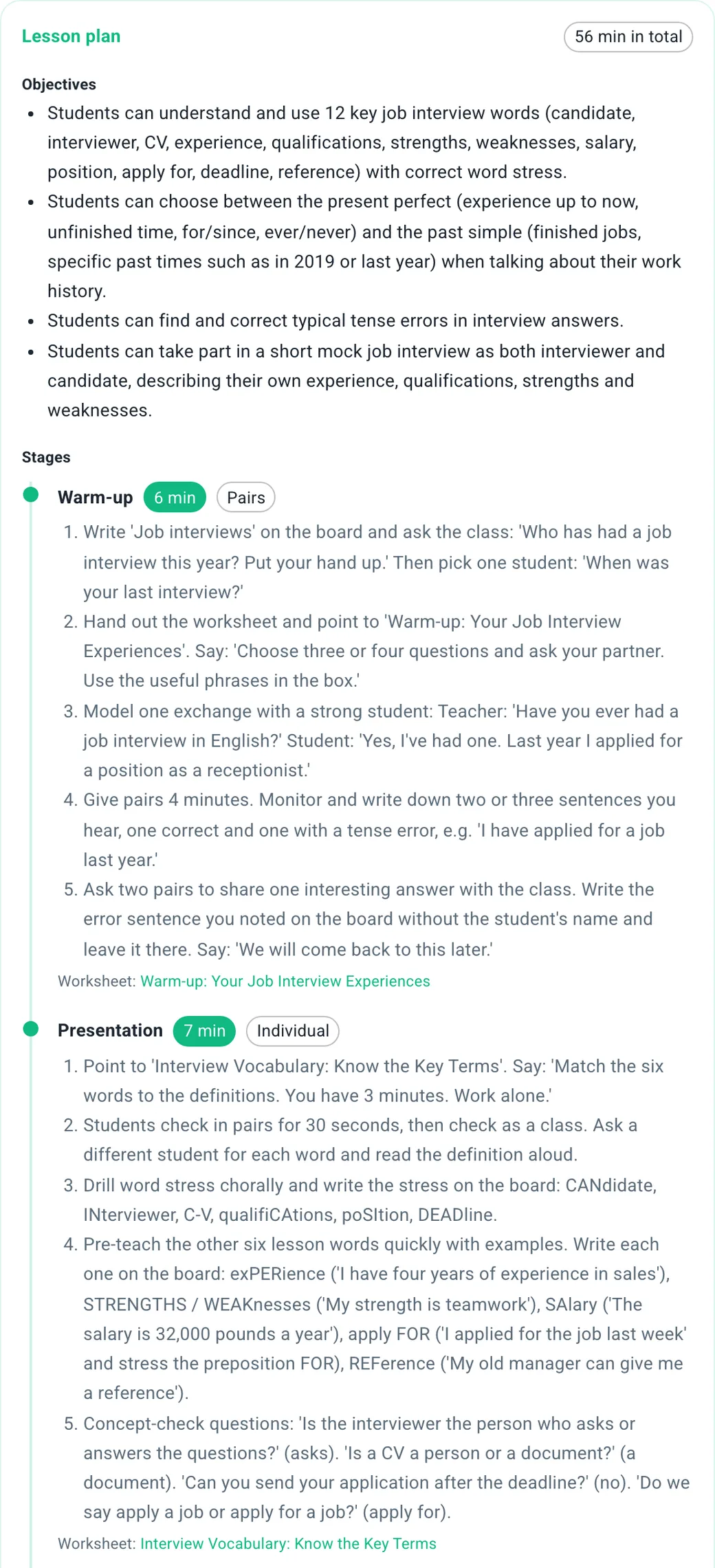
In one of our test plans (B1, adults, "Job interviews"), the warm-up is five minutes of pair work. Students ask each other how many job interviews they've had and how the last one went. You listen and note down a few of their present perfect and past simple sentences to come back to when you get to the grammar.
Below the stages you'll find the parts most ready-made worksheets leave out: what to put on the board, problems you can expect and how to handle them, a task for fast finishers, and homework.
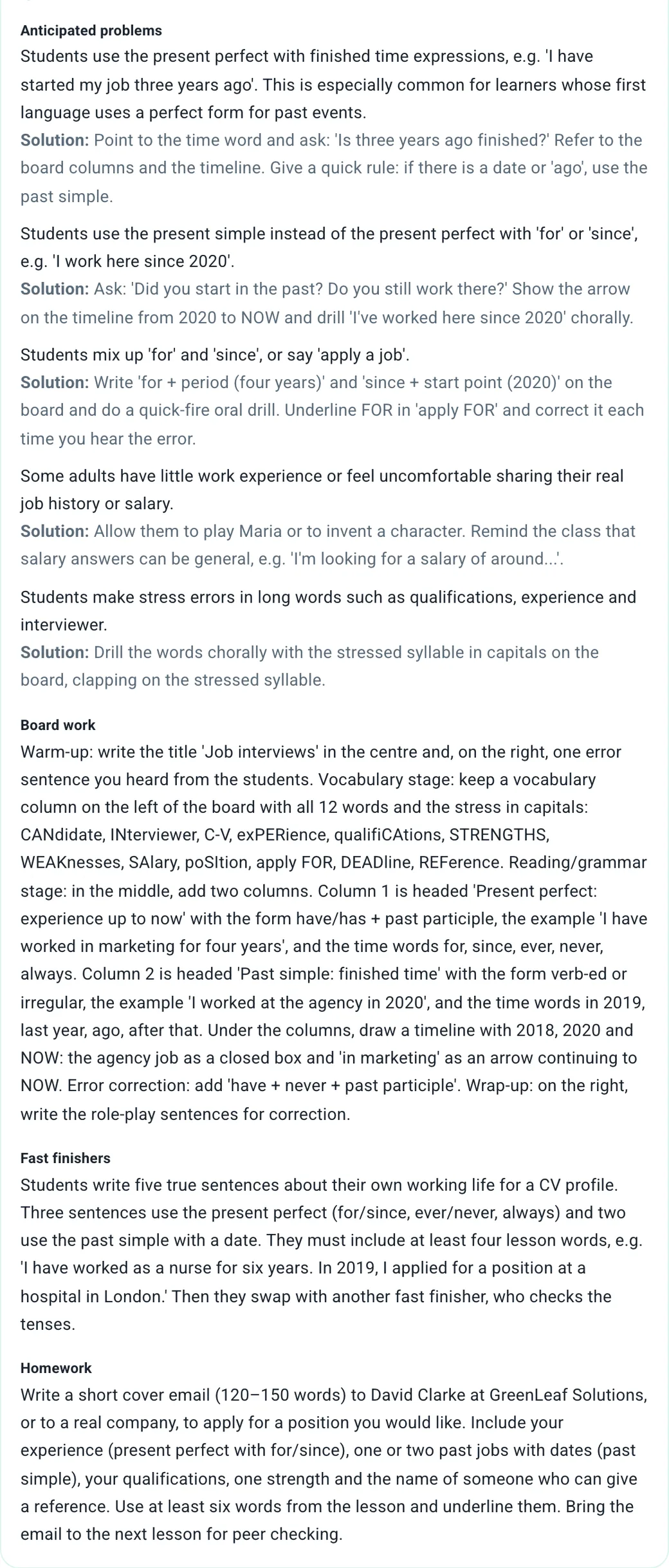
For a group of Polish learners, that same plan expected students to say "I work here for three years", because that's how it's put in Polish. Next to it was a way to deal with it: ask whether they started in the past and whether they still work there.
What you print
The exercises go into the student PDF. The plan is the first page of the teacher PDF, followed by the answer key. So you take two printouts to class. One goes round the room and the other stays on your desk.
The plan is written in the language your Learnico dashboard is set to, English or Polish. Example sentences stay in the language you teach. If you teach Spanish, you read the instructions in English, and the questions you'll ask the class are already in Spanish.
The generator covers English, Spanish, German, French and Italian, levels A1 to C2, and three age groups: children, teens and adults.
How to make one
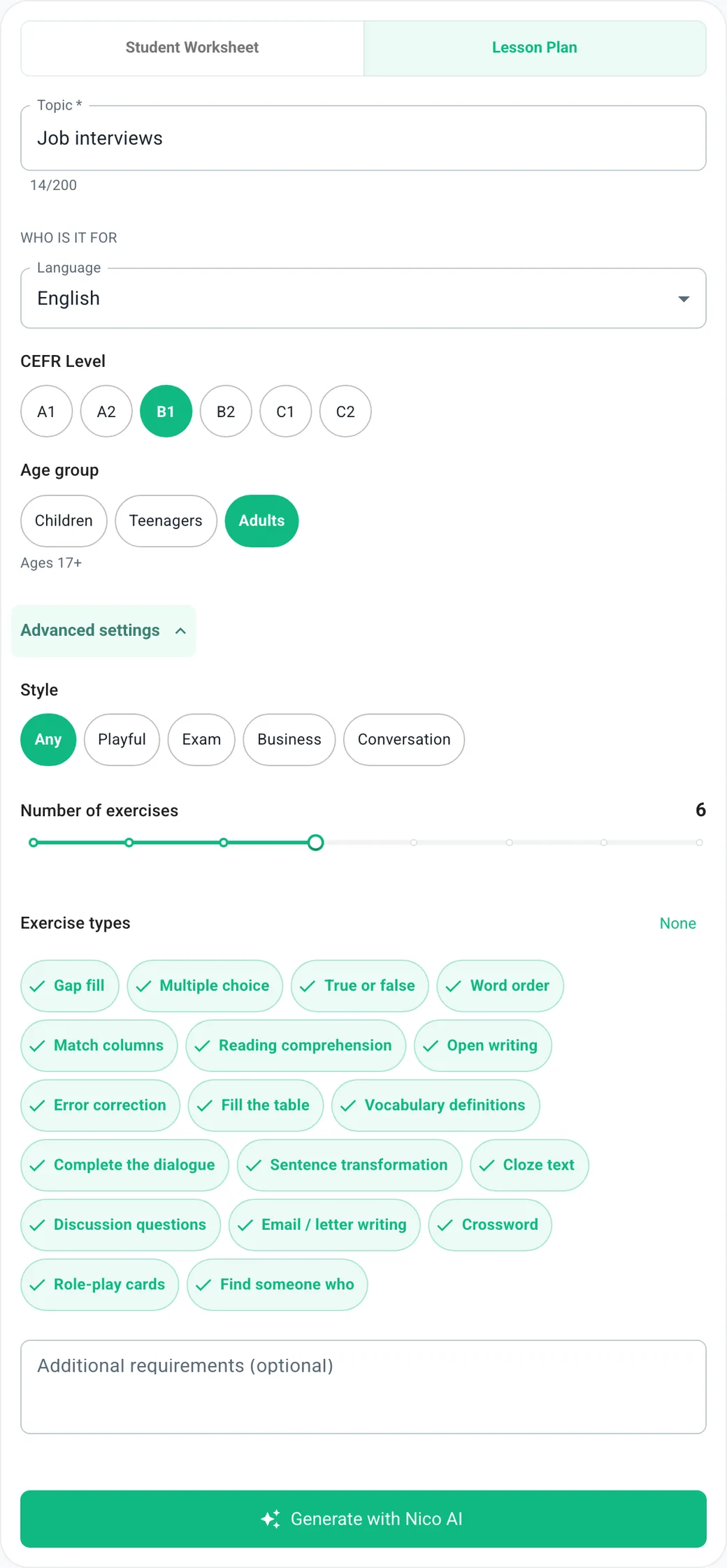
- Open the generator. If you have a Learnico account, the same form is in your dashboard under "Material Generator".
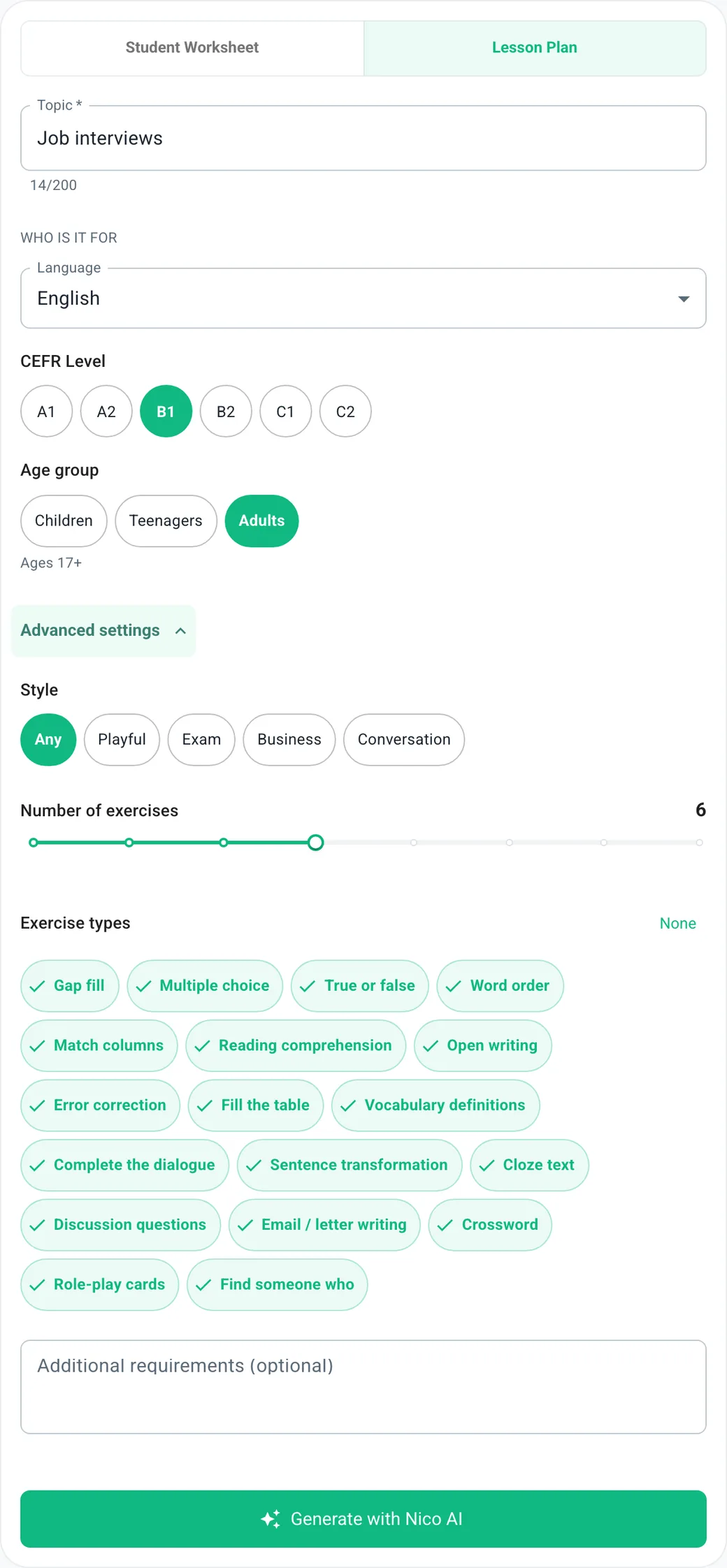
- Pick "Lesson Plan" and type a topic. Then set the language, level and age group.
- If you want more control, open "Advanced settings". You can choose the number of exercises (3 to 10), which exercise types to use and a style: playful, exam, business or conversation. There's also a box for anything else, like "more speaking, less writing".
- Click "Generate with Nico AI". A progress bar shows what the generator is working on. It usually takes a minute or two.
- Download the PDFs. On the public generator page you can also have them emailed to you.
Before it reaches you
Every material gets checked by Nico before you see it. Nico looks at whether the answers are right and whether the language fits the level. It also checks that the sentences sound natural and that the exercises don't contradict each other. Anything wrong gets fixed straight away.
Some checks run in code. In a gap-fill, for example, every correct answer has to be in the word bank. A student who can't find the word in the box gets stuck on the whole exercise, and you end up explaining a mistake in the worksheet instead of teaching.
Other changes in this release
There are four new exercise types: crossword, word search, role-play cards and "Find someone who". Worksheets for children now come with pictures.
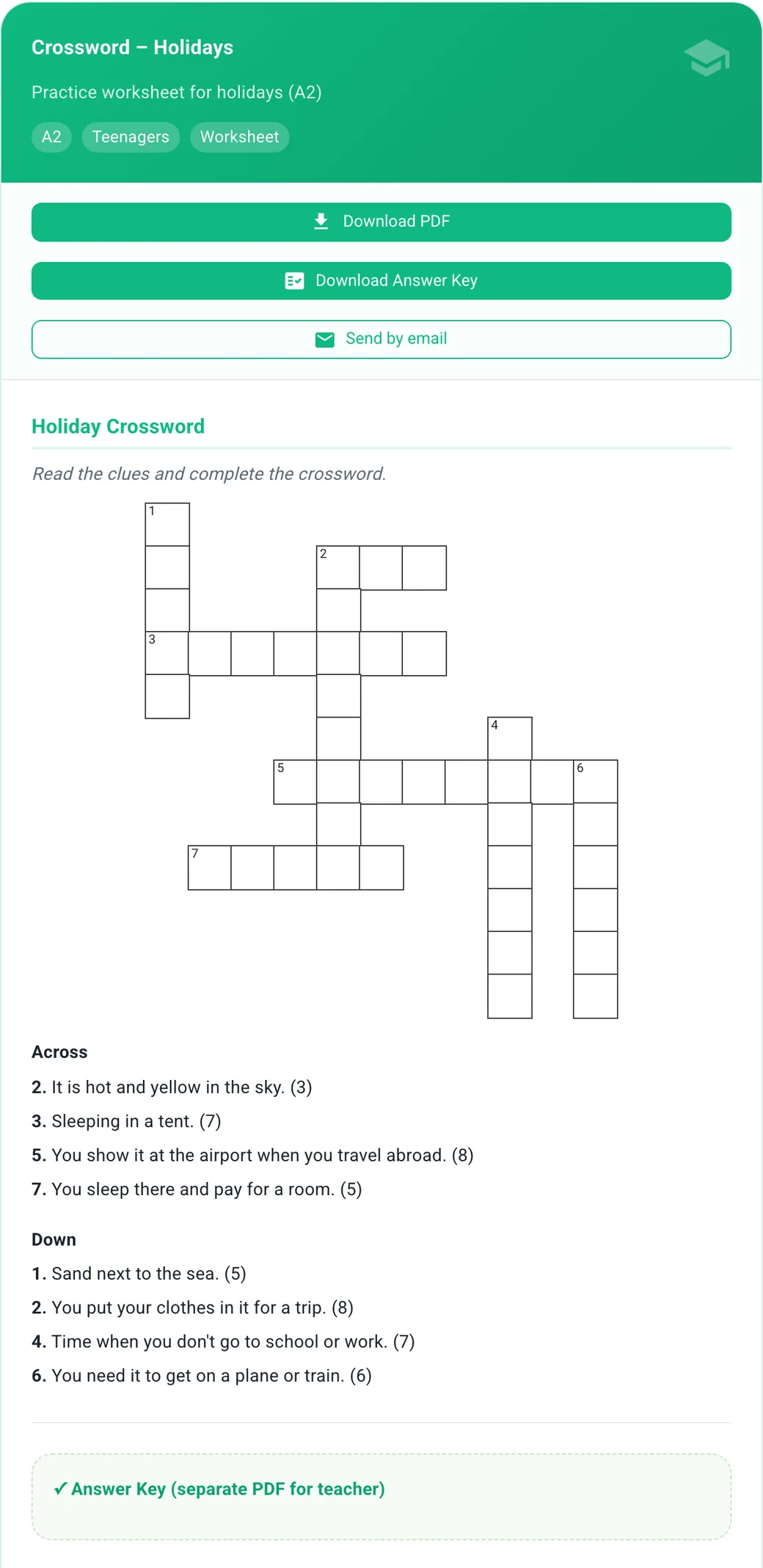
When you're logged in, you can regenerate a single exercise you don't like and switch it to another type while you're at it, say a crossword in place of multiple choice. You can rate each material with a thumbs up or down and add a comment. Older materials can be downloaded straight from the history list.
You can do the same from a chat with Nico. Tell Nico what you need for tomorrow and it will put the material together. After that you can ask it to swap one exercise or rate the result.
Worth keeping in mind
Treat the plan as a starting point. The generator knows the topic, the level and the age of your students. It doesn't know your group. It has no idea that nobody has energy for pair discussion on a Monday after work, or that one student always finishes first. Move the minutes around, shorten a stage, or drop an exercise that won't work for them.
The public generator lets you make 10 materials a week. Once you're logged in, the limit is monthly and depends on your plan.
If something in a plan doesn't work for you, rate it and say what to change in the comment. You can also reach us through Nico, which can send a message to our support team for you.